
spendly
Simple, powerful, and free budget tracking for everyone with tables, stats and charts
Made for my gf
What is it ?
Spendly is a web application designed to help you track your budget and expenses in a simple and efficient way. It offers a user-friendly interface where you can easily manage your finances, categorize your spending, and visualize your financial data through charts and statistics. Whether you’re looking to keep a close eye on your daily expenses or plan for long-term financial goals, Spendly provides the tools you need to stay on top of your budget.
User documentation
Hi 👋
You’ll find here everything you need to know to use Spendly.
The homepage lists all features of Spendly, with some technical details too.
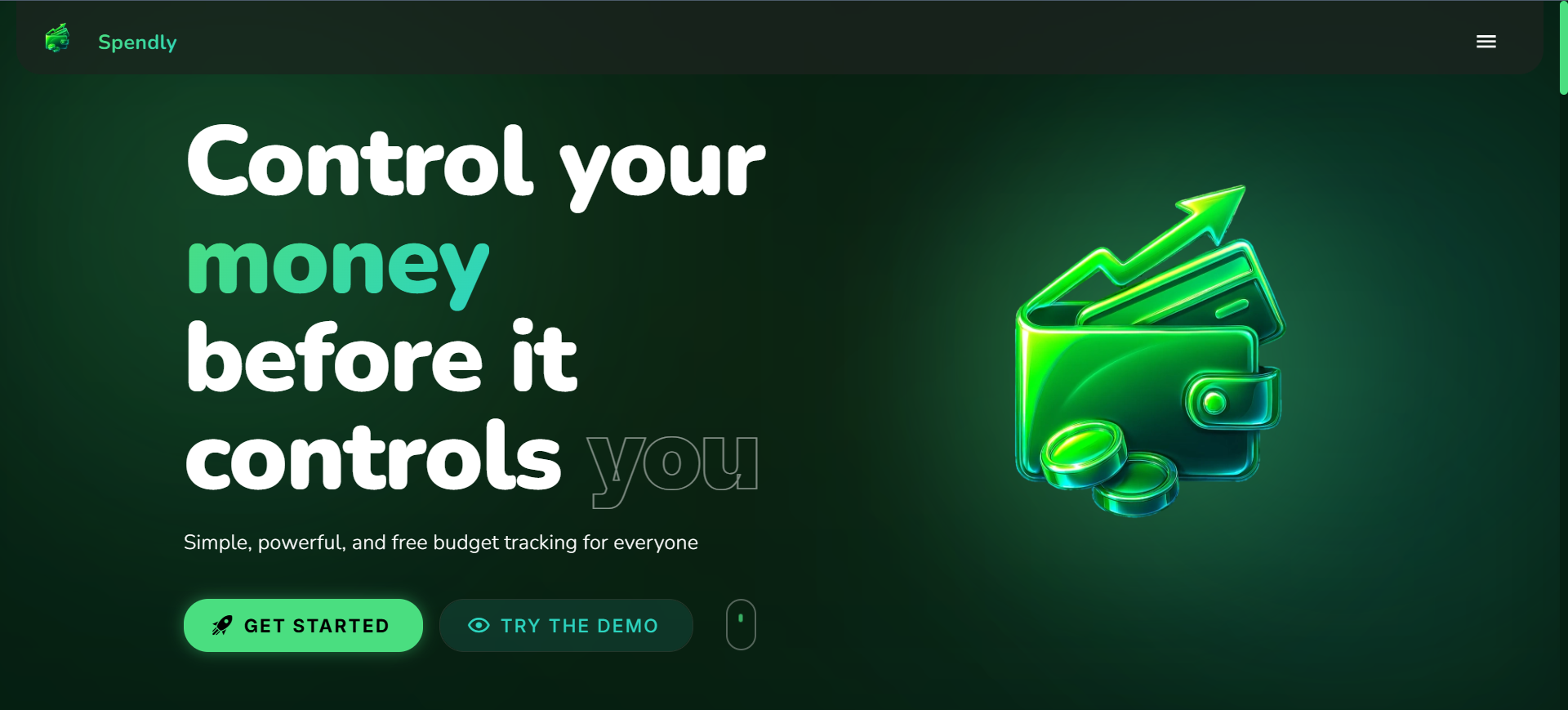
The best way to understand Spendly is to check the demo.
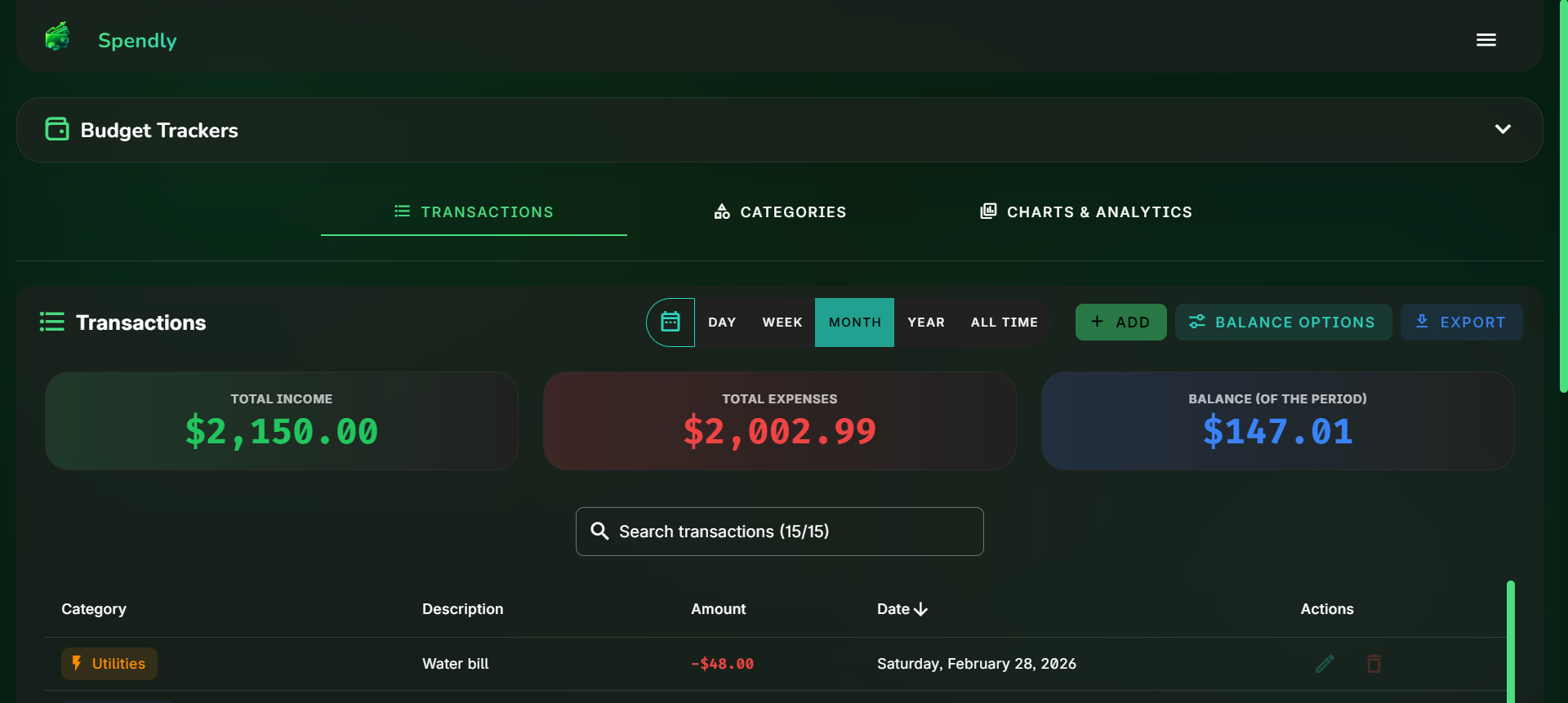
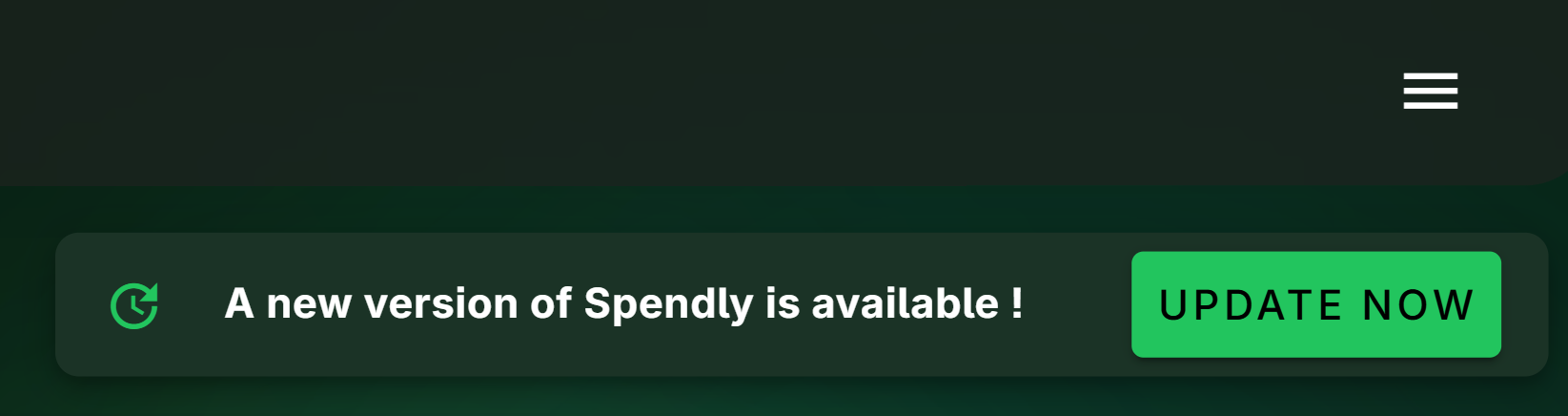
The app also allows you to install it as a PWA on your device, and access it from anywhere. It is responsive and works on all screen sizes. It will also warn you when a new version is available, so you can always have the latest features and bug fixes.

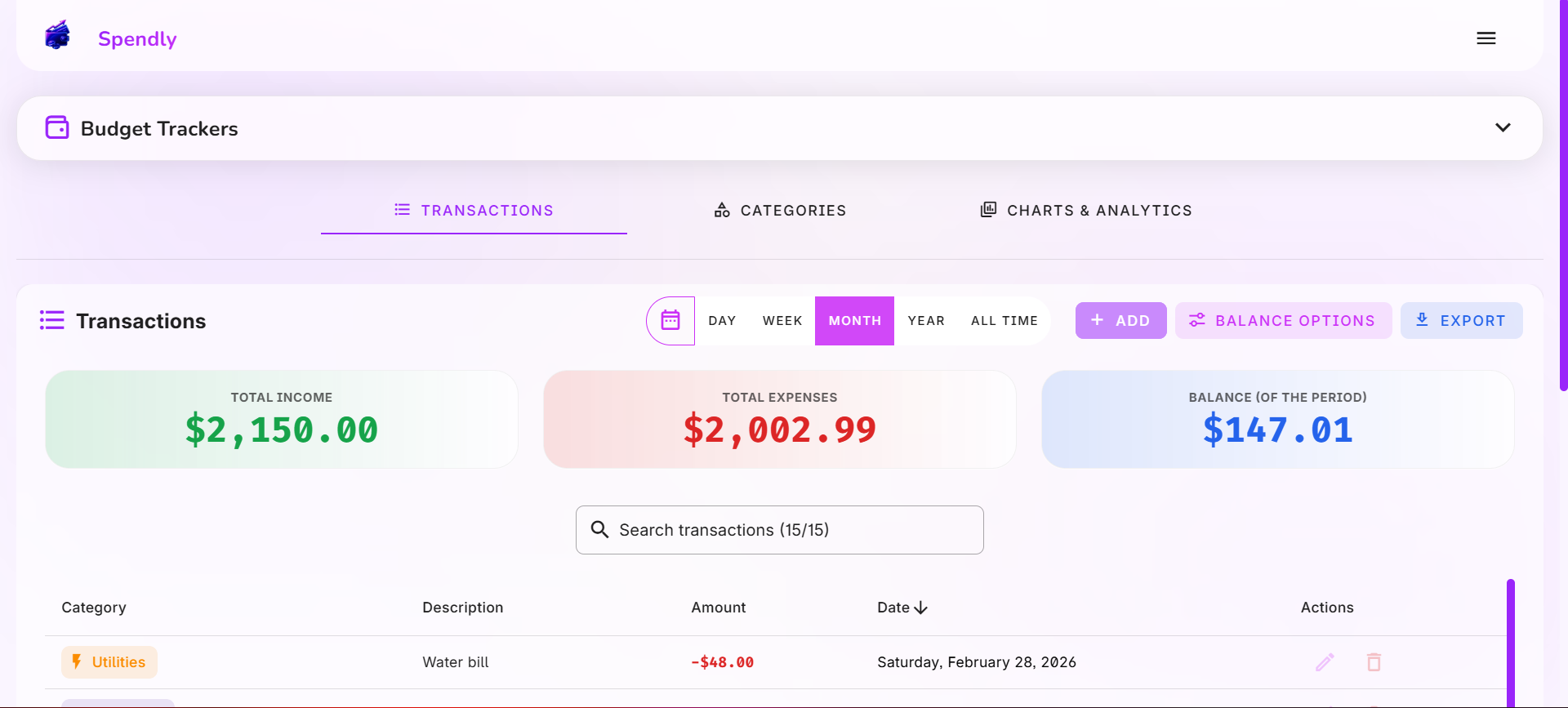
The app is available in English and French, and have both light and dark modes. Use the Menu to switch between them, log in/out and access your account settings.
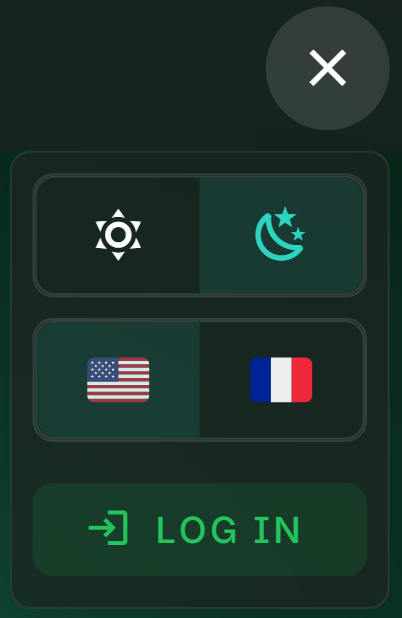
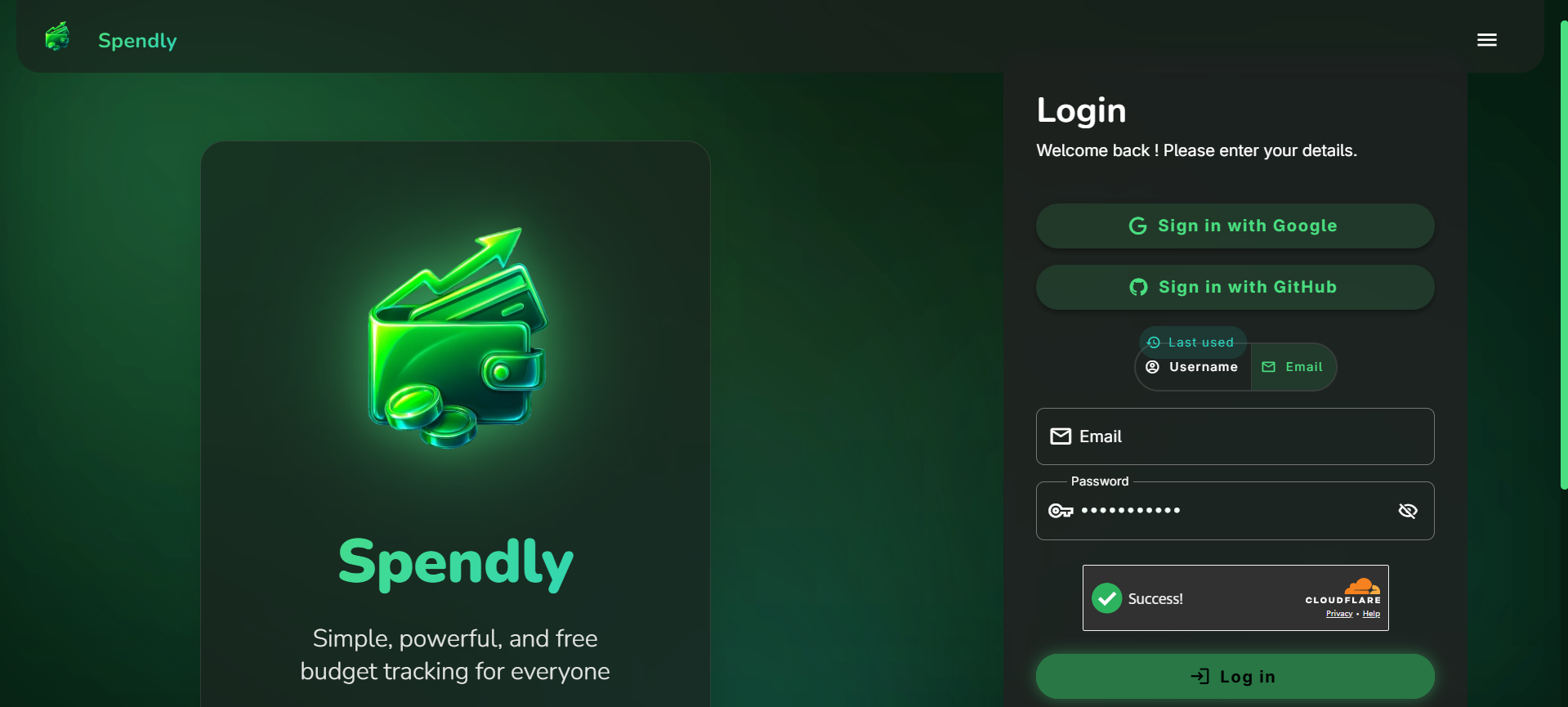
Go to the login page once you’re ready. You can create an account. Afterwards, simply login with your username/email and password, or use OAuth once linked in your account settings.
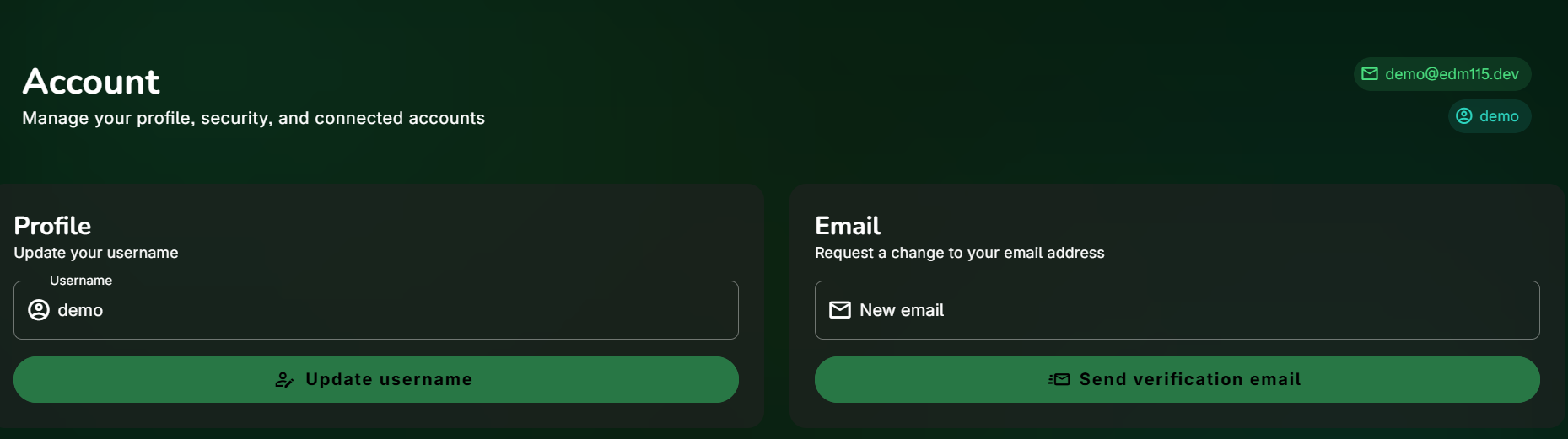
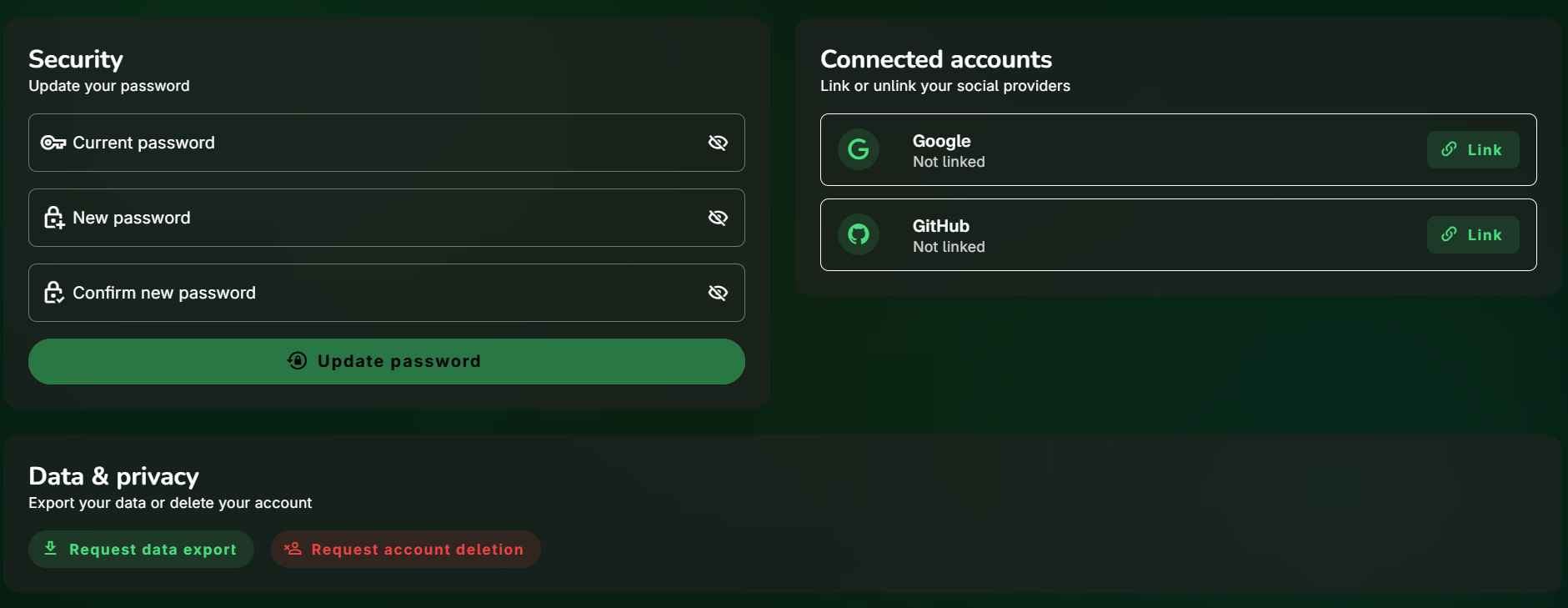
Speaking of those accounts settings, they allow you to take multiple account-related actions.

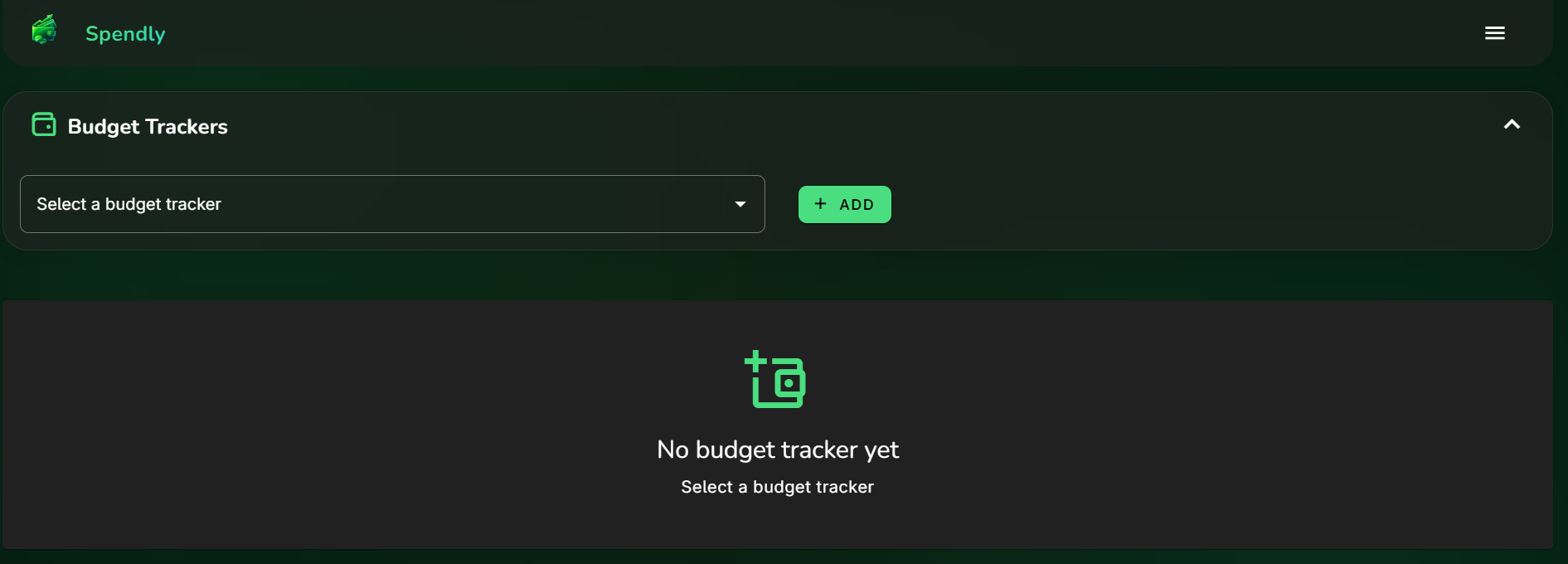
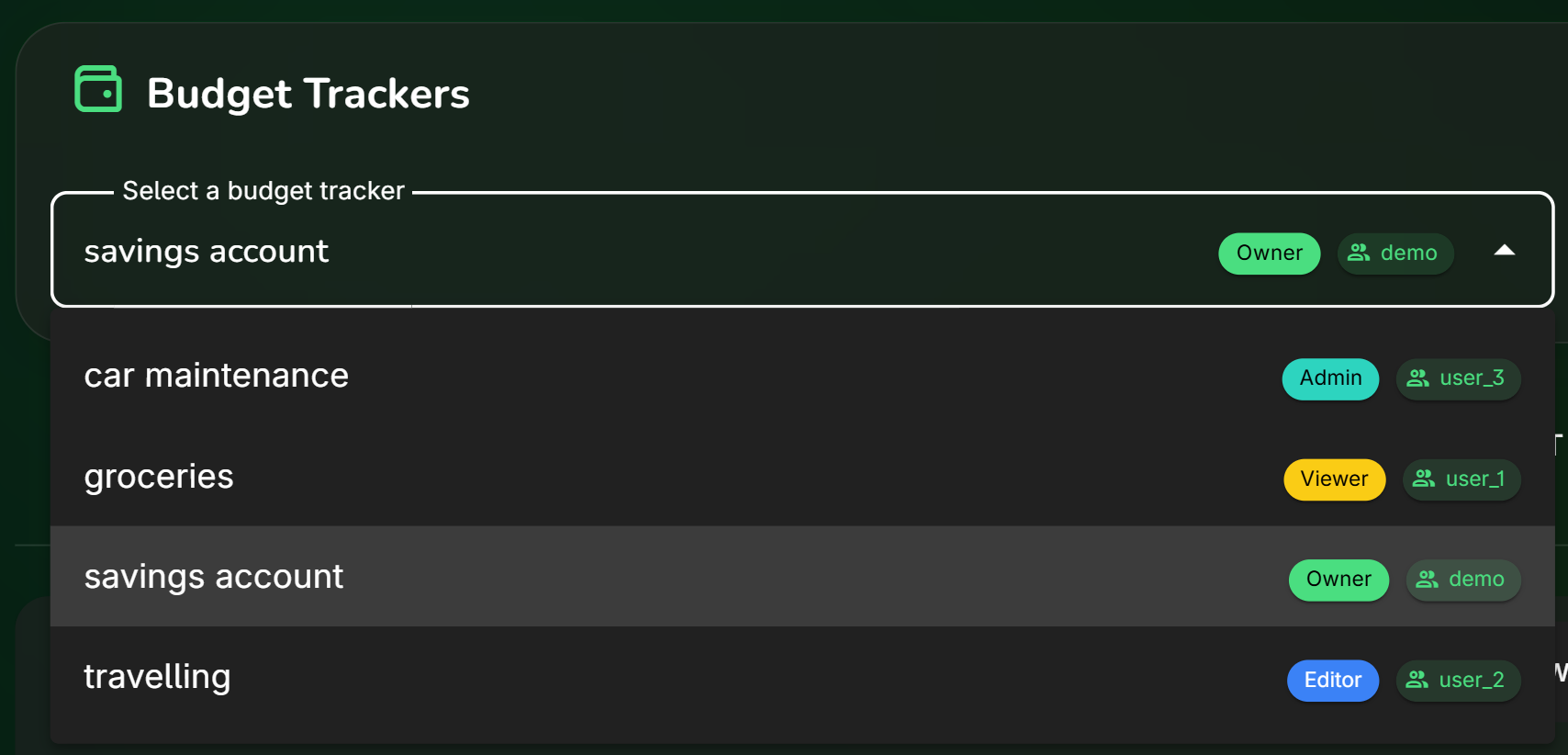
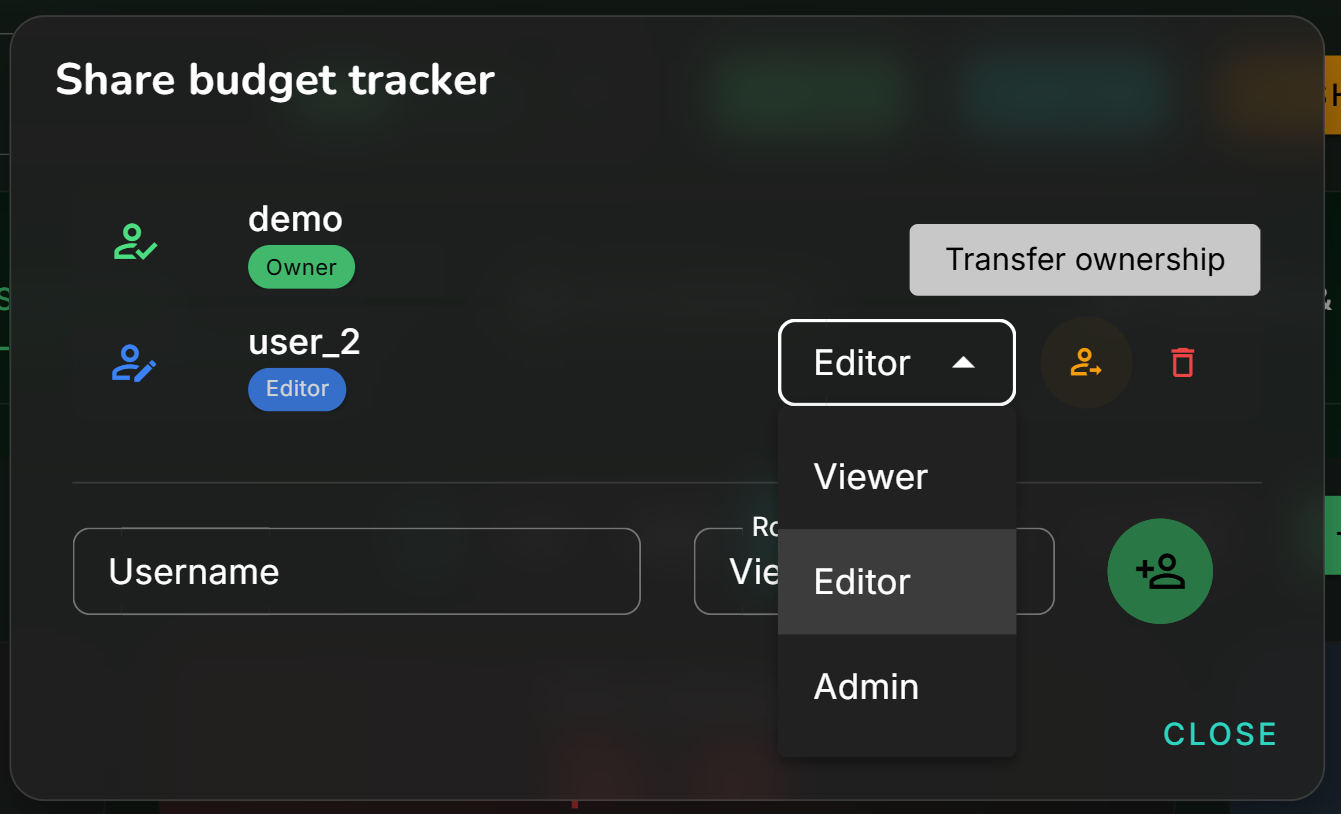
The first step is to create a budget tracker, which is a container for your financial data. You can create as many as you want, and share them with other users with different permissions (viewer/editor/admin).
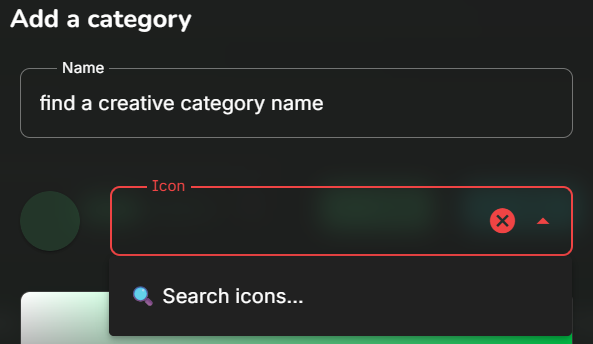
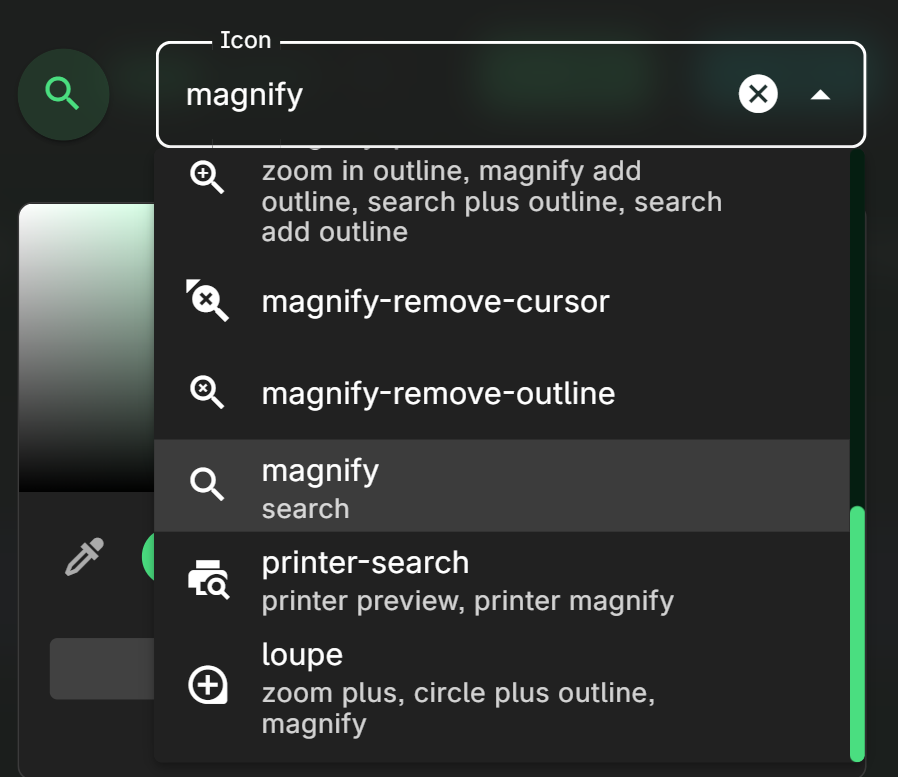
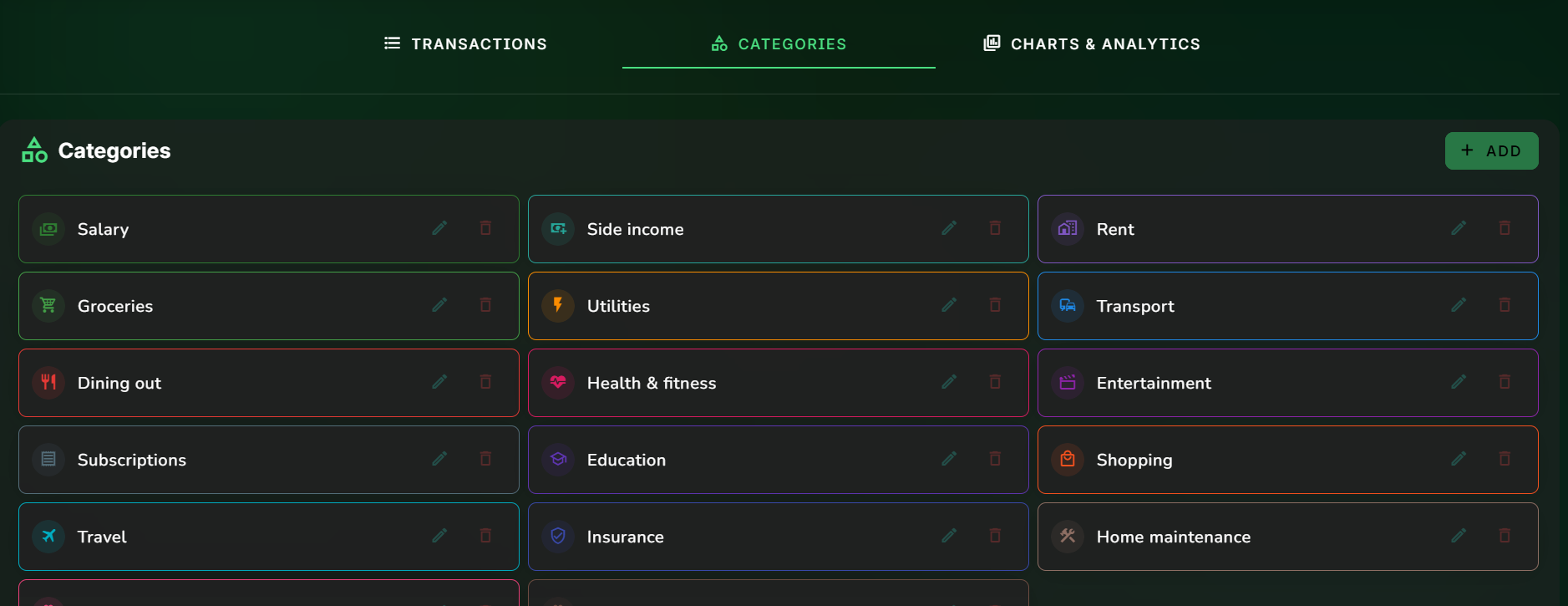
Once done, you can start adding categories. It have a built-in icon search.

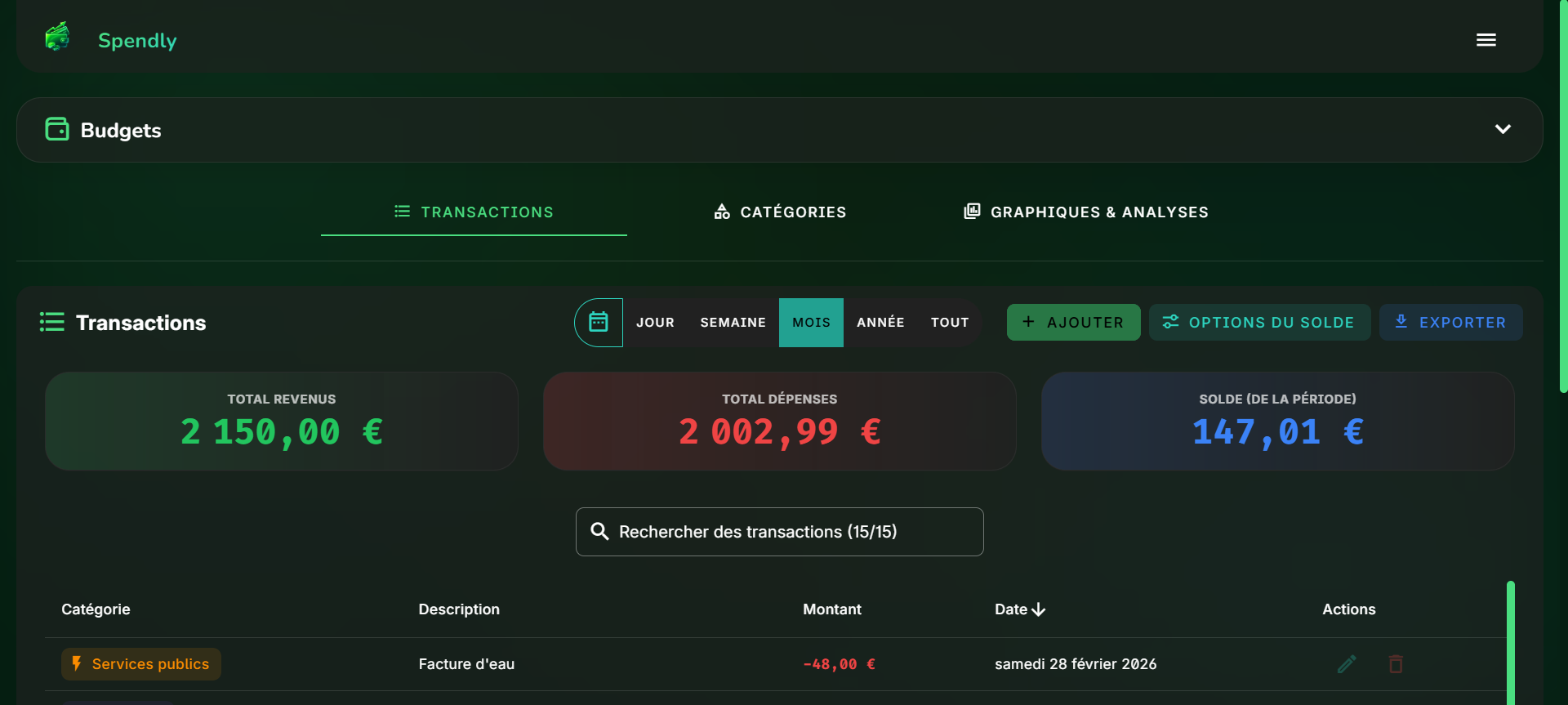
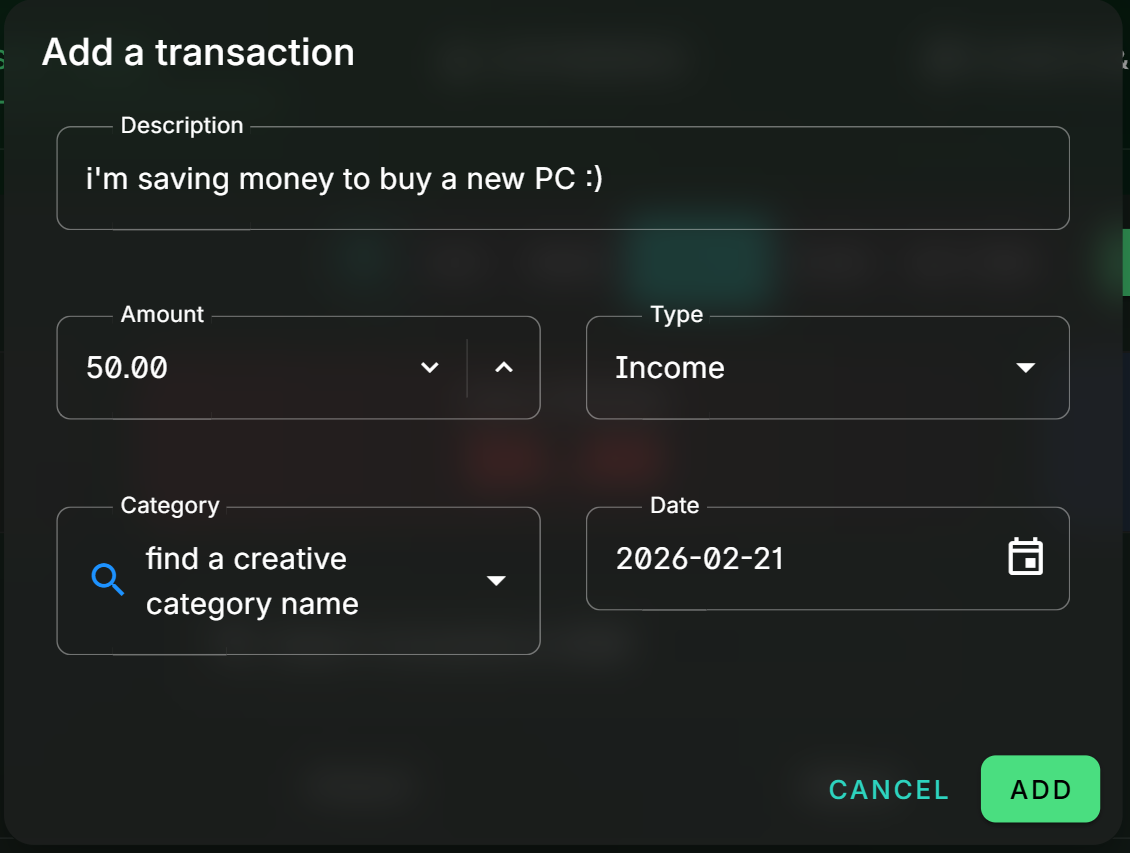
Then, it is time to add transactions. You can specify a name, amount, date, category, and whether it’s an expense or an income. You can also edit or delete them anytime.
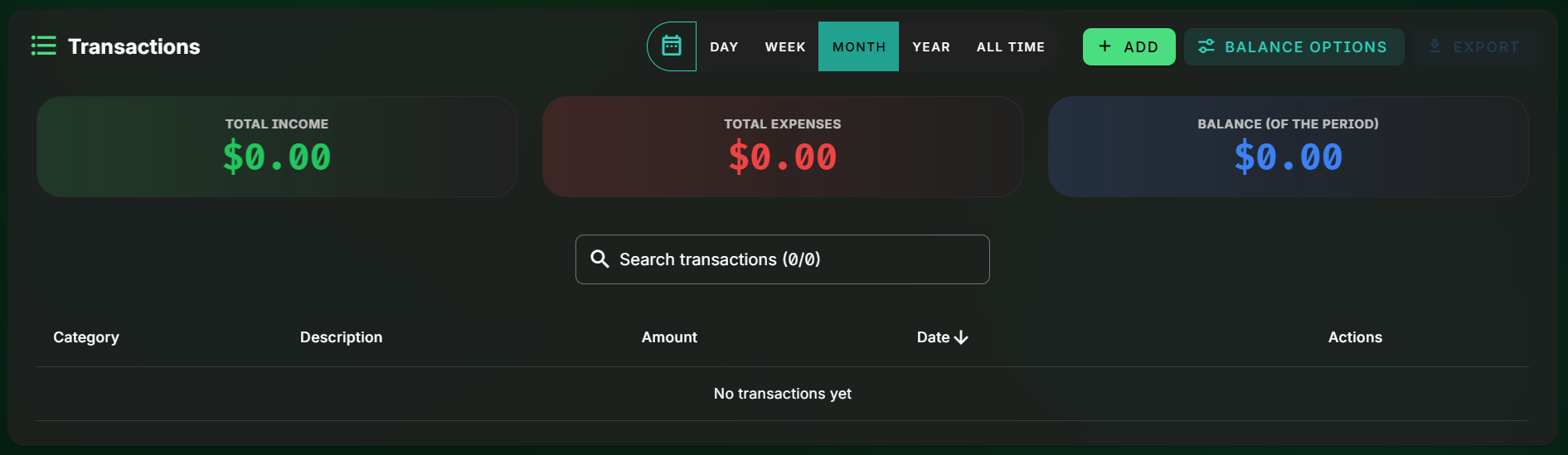
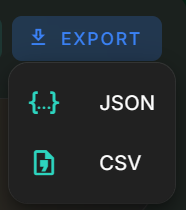
In the transactions table, you can search for any transaction and sort by any column. You can also export transactions as a CSV or JSON file.

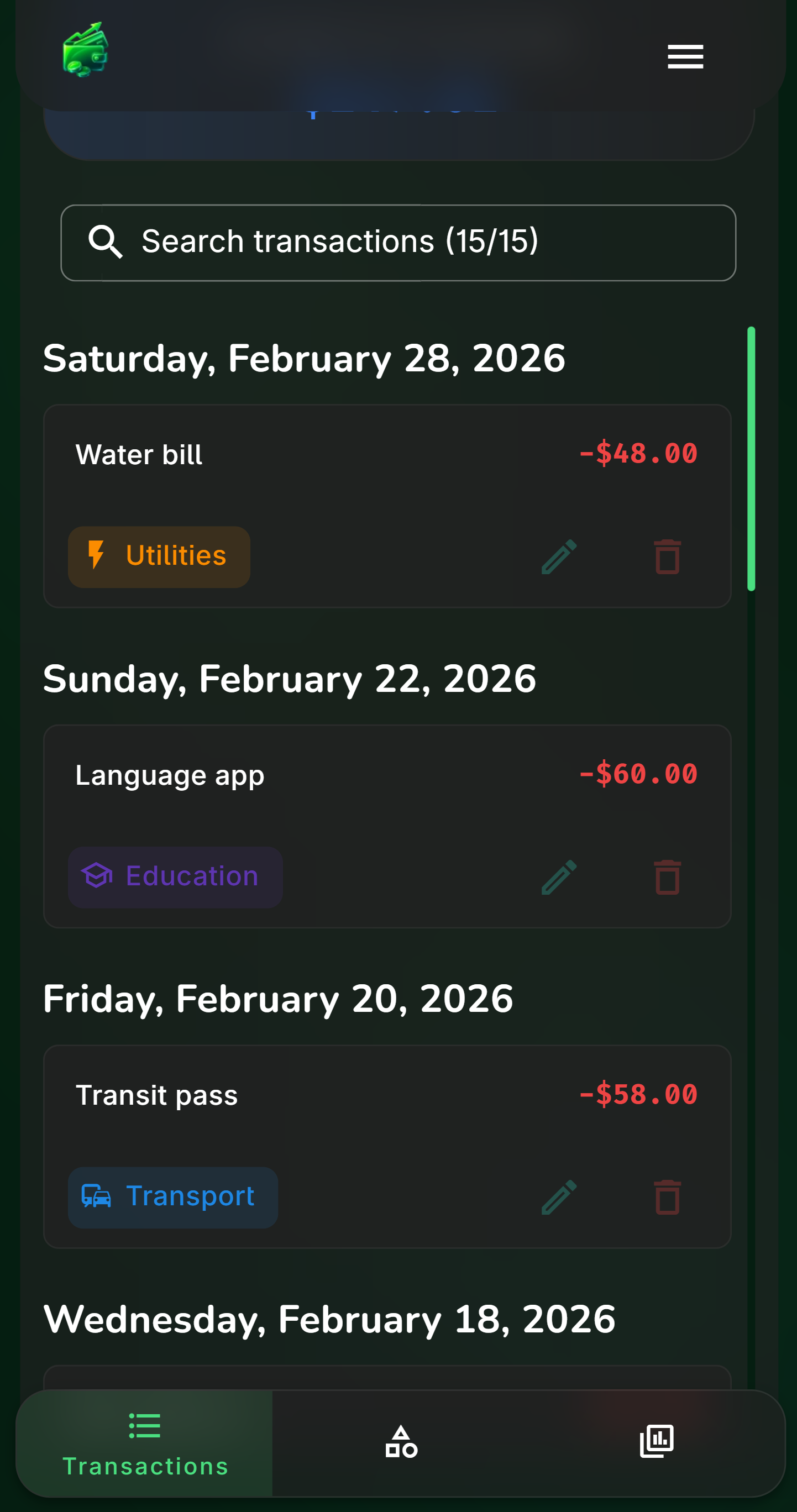
The table is replaced by cards on mobile for better readability.
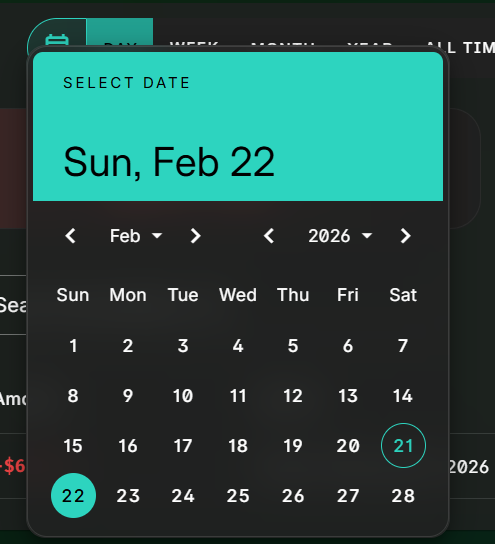
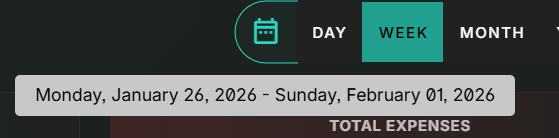
You can filter the list of displayed transactions by any date range (this also affects the charts). Hovering over the icon will tell you exactly which time range it corresponds to.

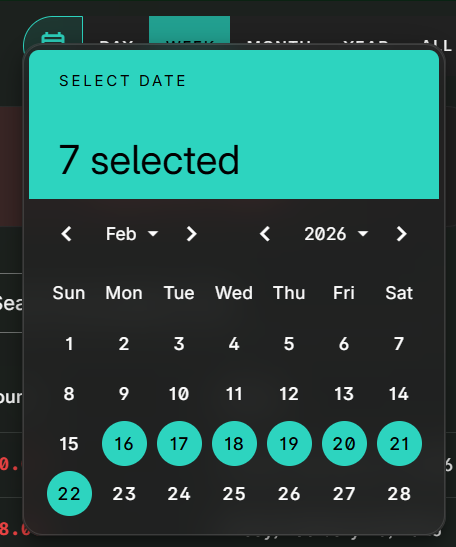
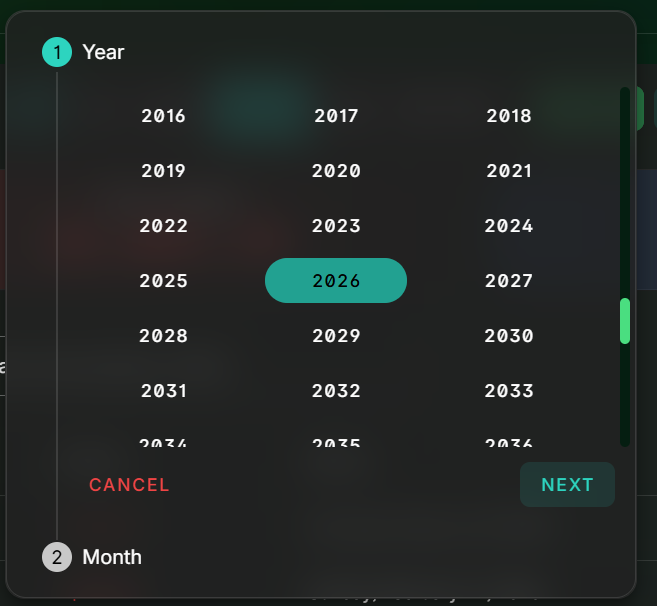
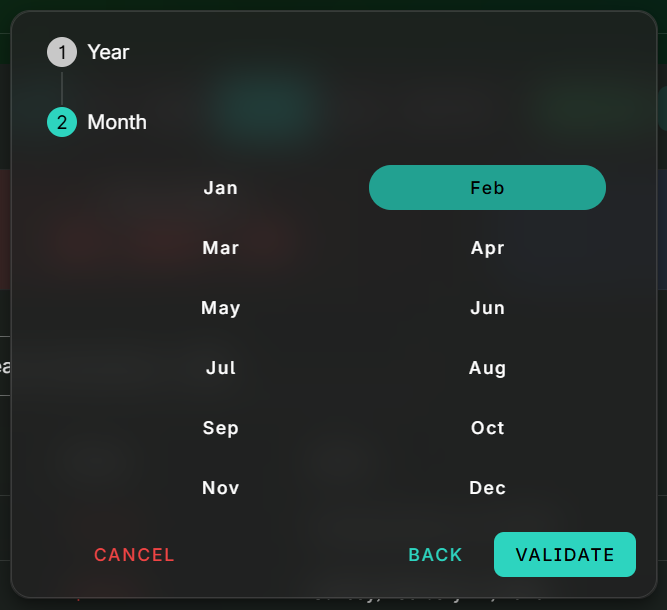
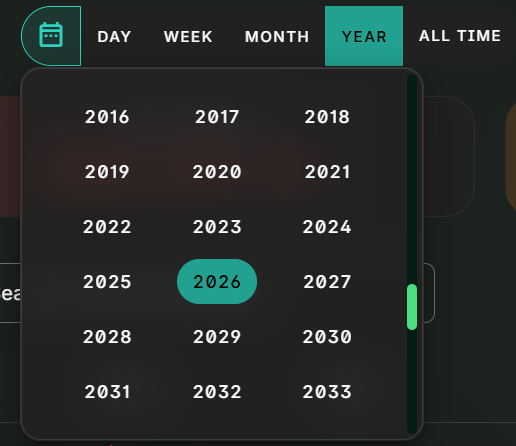
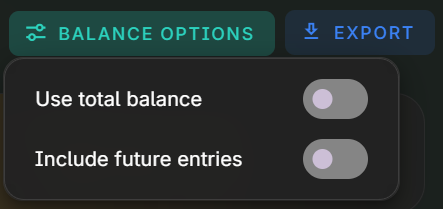
Depending on the date range, you’ll see an according summary of your expanses/income and your balance. You have options to take also into account past, future, or all transactions.


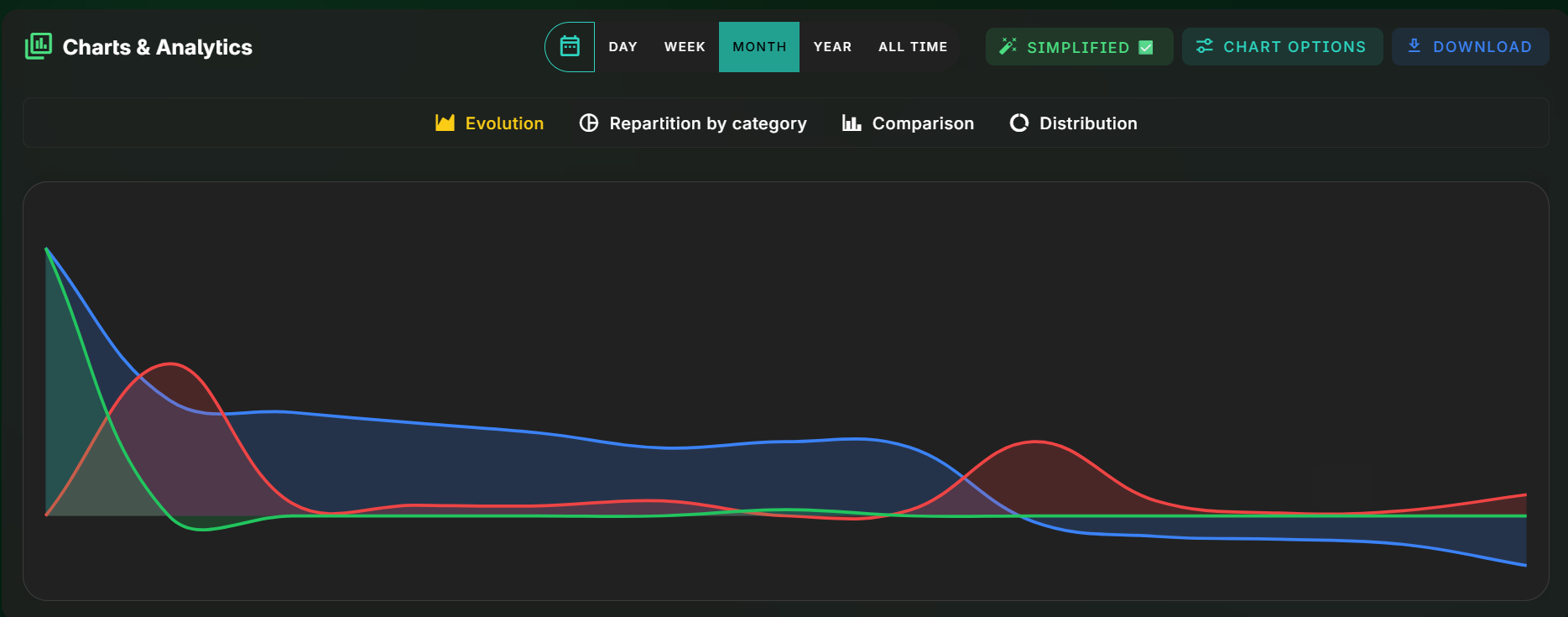
Finally, you have 4 types of charts to visualize your financial data in a more digestible way. They all have options to toggle some details on/off, and you can hover over data points for more details.

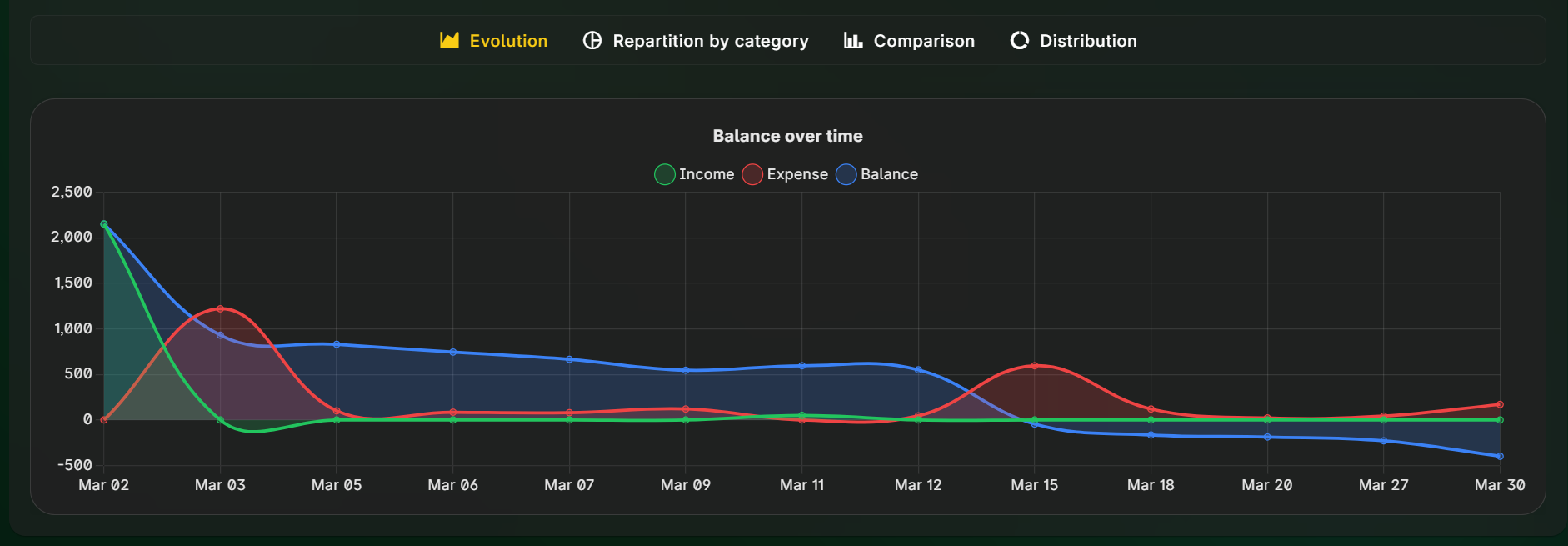
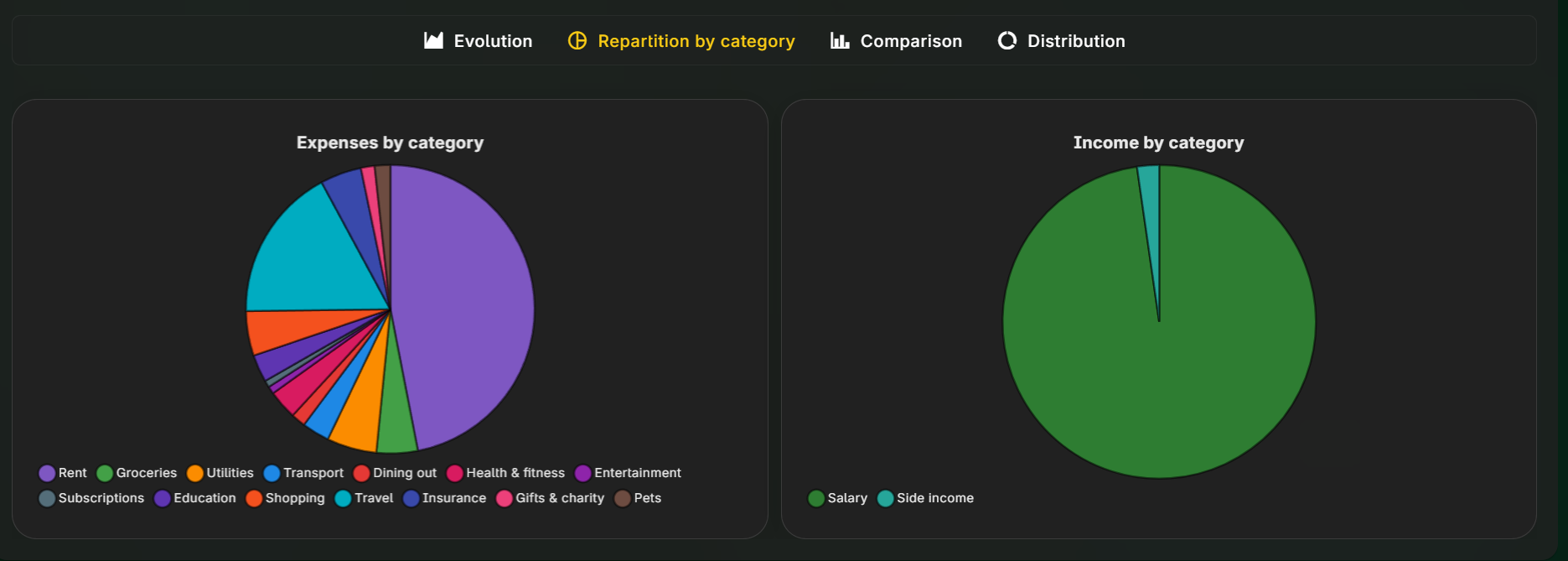
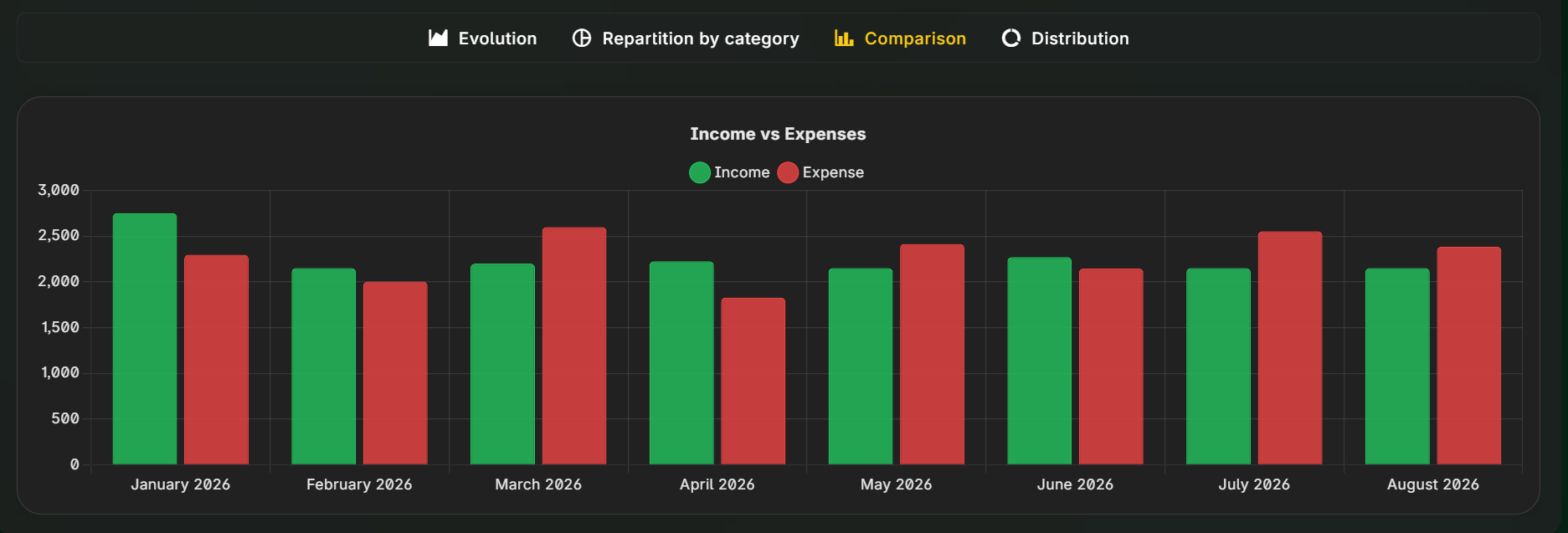
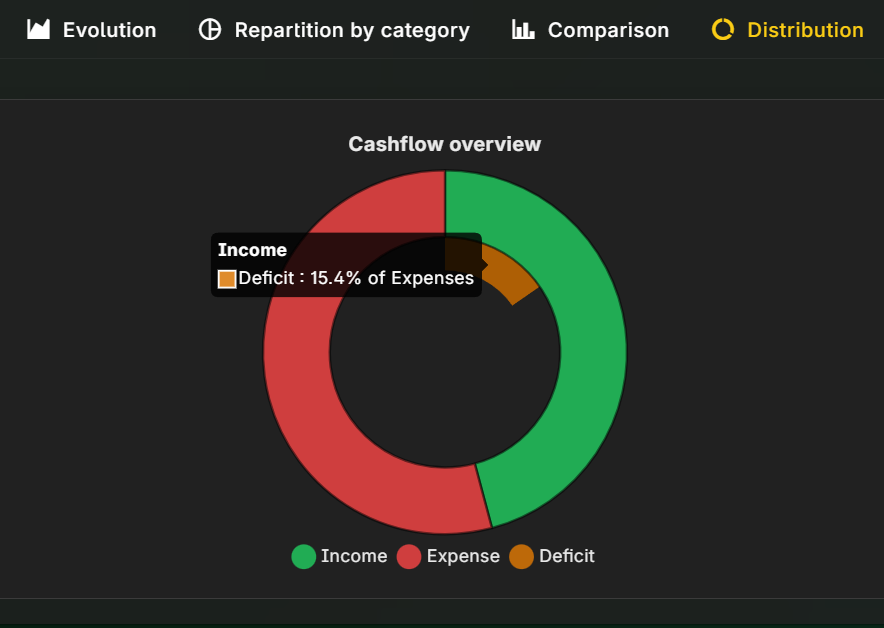
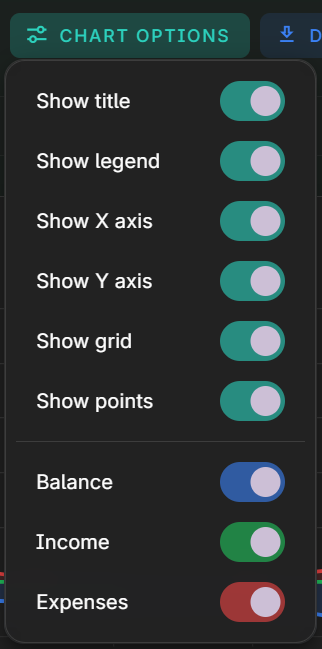
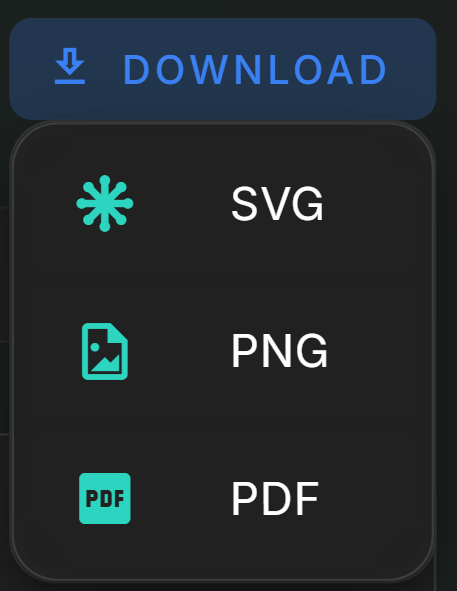
All charts have a simplified mode that turns off all details, and can be downloaded as SVG (infinite resolution), PNG or PDF.
Developer documentation
Get started
git clone https://github.com/EDM115/spendly.git
cd spendly
Create a .env file in the root directory and add the following variables :
SEED_USERS='[{"email": "admin@example.test", "username": "admin", "password": "admin", "role": "admin"}, {"email": "user@example.test", "username": "test", "password": "test", "role": "user"}]'
SEED=false
DEFAULT_UI_LANG=en
DB_FILE_NAME=db/data.db
BETTER_AUTH_SECRET=x0x0x0
BETTER_AUTH_URL=http://localhost:8880
RESEND_API_KEY=re_xxxxxxxxx
GITHUB_CLIENT_ID=xxxx
GITHUB_CLIENT_SECRET=xxxx0000
GOOGLE_CLIENT_ID=0000-xxxx.apps.googleusercontent.com
GOOGLE_CLIENT_SECRET=xxxx-0000-xxxx-
TURNSTILE_SITE_KEY=0x4AAAAAA00
TURNSTILE_SECRET_KEY=0x4AAAAAA00-XX

# you can skip those
SERVICE_NAME=spendly
SERVICE_VERSION=1.3.0
LOG_LEVEL=info
LOG_INCLUDE_UA=true
LOG_INCLUDE_IP=true
STAGE=development
ALERT_API=https://alert.service/send?token=xxxx&message=
DISABLED_FEATURES=magic-link,turnstile
Required :
SEED_USERS: if any value should contain a quote, write instead\'(or\")SEED: enables database seeding when the app boots. In Docker, leave this totrueso the first run seeds an empty volume (seeding is skipped if data already exists)DEFAULT_UI_LANG: the default language of the UI (eitherenorfr)DB_FILE_NAME: the path to the SQLite database file, please keep as-isBETTER_AUTH_SECRET: generate withnode -e "import('crypto').then(crypto => console.log(crypto.randomBytes(64).toString('hex')))"BETTER_AUTH_URL: the base URL of Spendly, port 8880 in dev and 60000 by default in prod, change with the proper URLRESEND_API_KEY: to send emailsGITHUB_CLIENT_ID&GITHUB_CLIENT_SECRET: for GitHub OAuthGOOGLE_CLIENT_ID&GOOGLE_CLIENT_SECRET: for Google OAuthTURNSTILE_SITE_KEY&TURNSTILE_SECRET_KEY: for Cloudflare Turnstile CAPTCHA
Optional :SERVICE_NAME: service identifier in logs (defaults tospendly)SERVICE_VERSION: release/version tag to include in logs, defaults to the version inpackage.jsonLOG_LEVEL: pino log level (exdebug,info,warn,error)LOG_INCLUDE_UA: set totrueto include user-agent in request logs (defaultfalse)LOG_INCLUDE_IP: set totrueto include client IP in request logs (defaultfalse)STAGE: override log environment (production,staging,development), defaults toNODE_ENVALERT_API: an API endpoint to send alerts to when an email have been sent (to monitor its usage as it ain’t free), the message will be appended to the URLDISABLED_FEATURES: a list of comma-separated values of stuff you wanna disable in Spendly. useful for self-hosting and not creating accounts everywhere. possible values :email,logs,magic-link,oauth-github,oauth-google,turnstile
TIP
to keep turnstile active but do no actual validation, use 1x00000000000000000000AA as TURNSTILE_SITE_KEY & 1x0000000000000000000000000000000AA as TURNSTILE_SECRET_KEY
to disable other features, fork the repo and edit the code yourself
other notes for self-hosters that requires forking the repo :
- disableable login features will unfortunately stay backend-wise because it would be a db migrations pain, but also because I can’t do it, see https://github.com/better-auth/better-auth/pull/6064#pullrequestreview-3612931730
- there are some occurences that hard-code either the domain or the email, search for
edm115.devin any.ts/.vue/.jsonfile and edit accordingly
pnpm i --frozen-lockfile
pnpm db:migrate
pnpm db:seed
pnpm dev
Congrats ! Go now to localhost:8880 to check the UI.
Third-party setup
Turnstile
- Go to https://dash.cloudflare.com -> Turnstile (use the sidebar search if needed)
- Click on
Add widget - Give it a name
- Add as Hostnames :
localhostand your production domain (exspendly.edm115.dev), as well as any other one - Keep Widget mode to
Managed - Set Pre-clearance to
Yes, and set the Pre-clearance level toInteractive (high) - You now have your Site Key and Secret Key
Resend (emails)
- Create an account on https://resend.com/ and go through the Onboarding. Do not reuse that API key for this project and delete it once the Onboarding have been completed
- Go to Domains,
Add domain. It is best to set it up as a subdomain to avoid potentially polluting your main domain score - Place the region closest to your website hosting
- Go through the steps. Auto-setup with Cloudflare is easiest, tho be careful if you have existing
MXrecords ! - Do not enable Receiving if you already have a solution that forwards emails somewhere else, otherwise do it
- Configuration-wise, disable
Click Tracking&Open Tracking, and setTLStoOpportunistic - Once the domain have been verified, create an API Key.
Full accessif Receiving is enabled,Sending accessotherwise - Go in Templates and create 5 of them with the following variables as string (Formatting is up to you. I wish I could share the templates I made, but alas…) :
spendly-password-resetaccount_namespendly_homereset_link
spendly-verify-emailaccount_namespendly_homeverify_link
spendly-magic-linkaccount_namespendly_homeconnect_link
spendly-account-deletionaccount_namespendly_home
spendly-export-requestaccount_namespendly_home
GitHub OAuth
- Go to https://github.com/settings/developers
- Click on
New OAuth App - Give it any name, homepage
- Authorization callback URL is
http://localhost:8880/api/auth/callback/github(note : you cannot setup multiple callback URLs, so you will need to create multiple Apps for dev and prod, which is recommended anyway. make sure to switch tohttpswith the prod URL !) - Leave
Enable Device Flowdisabled - Once registered, add a logo/badge color if you want
- You now have your
Client IDand you can create here theClient secret
Google OAuth
- Go to https://console.cloud.google.com/apis/credentials
- Check that you selected the right project at the top (or create one if needed)
- Click on
+ Create Credentials->OAuth client ID - Application type is
Web application - Authorized JavaScript origins is
http://localhost:8880(and your prod domain, exhttps://spendly.edm115.dev) - Authorized redirect URIs is
http://localhost:8880/api/auth/callback/google(and the prod one, exhttps://spendly.edm115.dev/api/auth/callback/google) - Save. You now have the
Client ID(looking like an URL), and you can generate aClient secret - Go to Branding and add a logo if you want. You can also add your prod domain, exempt of any subdomain in the Authorized domains field (ex
edm115.devbut notwww.edm115.devnorspendly.edm115.dev) - Go to Data access, and enable the following fields :
openid.../auth/userinfo.email.../auth/userinfo.profile
- For the Audience tab, you can keep it as Test for dev, but for Production you will need to submit for validation. This will require you, among other things, to provide online and ready-to-hit Privacy Policy and Terms of Use pages. Spendly already has those, accessible at
/privacy-policyand/terms-of-use. You can then check where it’s at in the Validation center, and they will send emails if anything needs to be fixed.
PWA (Vite PWA / Nuxt)
- Spendly uses
-pwa/nuxtwith a generated Web App Manifest and service worker - PWA head entries (
manifest, icons,theme-color) are injected throughNuxtPwaAssetsinapp/layouts/default.vue - Icon assets are generated from
public/images/logo.webpvia thepwaAssetsintegration - Service worker update mode is configured as
promptto avoid forced reload while users are editing data
Log analysis (CLI + TUI)
Capture logs to a file (Docker example) :
docker logs spendly > logs/spendly.log
Follow logs and save them while you reproduce an issue :
docker logs -f spendly | Tee-Object -FilePath logs/spendly.log
docker logs -f spendly | tee logs/spendly.log
Capture dev server logs (when you pipe, JSON is emitted because the logger disables pretty output in non-TTY mode) :
pnpm dev | Tee-Object -FilePath logs/spendly.log
Analyze logs (CLI summary + JSON report) :
pnpm log:analyze --file logs/spendly.log
Analyze directly from stdin :
cat logs/spendly.log | pnpm log:analyze
Useful flags :
--duration-kind request|ui|system: choose which kind feeds duration stats/slowest--no-output: skip writing the JSON report to disk--json logs/log-report.json: write the JSON report to a custom path
Interactive TUI (requires a file path and a TTY) :
pnpm log:tui --file logs/spendly.log
TUI controls :
- Tabs :
1Overview,2Filters,3Drilldown - Overview :
↑/↓/scrollmove - Filters :
f/t/e/s/k/o/h/a/d/xedit/clear filters - Drilldown :
↑/↓/scrollmove,/search,Escclear search rrefresh,qquit,?help
On Drizzle DB schema/Better Auth config changes
pnpm better-auth:generate
# diff shared/db/auth.schema.ts with shared/db/schema.ts and update the Better Auth tables accordingly
pnpm db:generate
pnpm db:migrate
Build and run/Redeploy
docker compose up -d --build
Remove container but keep data
docker compose down
Older method
Build and run (Docker CLI)
docker build -t edm115/spendly .
docker run -d -p 60000:60000 --env-file .env -v spendly_db:/app/db --name spendly edm115/spendly
Redeploy (rebuild without data loss)
docker stop spendly && docker rm spendly
docker build -t edm115/spendly .
docker run -d -p 60000:60000 --env-file .env -v spendly_db:/app/db --name spendly edm115/spendly
Notes
- Database migrations run automatically at container startup
- Seeding runs only when
SEED=trueand the database is empty
DB Schema
budget_tracker
| Column | Type | Extra |
|---|---|---|
| id | string | Primary Key, UUIDv4 |
| name | string | Not Null |
user_budget_tracker
| Column | Type | Extra |
|---|---|---|
| user_id | string | Primary Key, Foreign Key, UUIDv4 |
| budget_tracker_id | string | Primary Key, Foreign Key, UUIDv4 |
| role | string | Not Null, default “viewer” |
category
| Column | Type | Extra |
|---|---|---|
| id | string | Primary Key, UUIDv4 |
| name | string | Not Null |
| icon | string | Not Null |
| color | string | Not Null |
| budget_tracker_id | string | Not Null, Foreign Key |
spending
| Column | Type | Extra |
|---|---|---|
| id | string | Primary Key, UUIDv4 |
| name | string | Not Null |
| budget_tracker_id | string | Not Null, Foreign Key |
| value | float | Not Null |
| is_spending | boolean | Not Null, default true |
| category_id | string | Foreign Key, Not Null |
| date | date | Not Null |
Mermaid diagram
erDiagram
  budget_tracker {
    TEXT id PK
    TEXT name
  }

  user_budget_tracker {
    TEXT user_id PK FK
    TEXT budget_tracker_id PK FK
    TEXT role
  }

  category {
    TEXT id PK
    TEXT name
    TEXT icon
    TEXT color
    TEXT budget_tracker_id FK
  }

  spending {
    TEXT id PK
    TEXT name
    TEXT budget_tracker_id FK
    REAL value
    BOOLEAN is_spending
    TEXT category_id FK
    DATETIME date
  }

  budget_tracker ||--o{ user_budget_tracker : has
  budget_tracker ||--o{ spending : contains
  budget_tracker ||--o{ category : has
  category ||--o{ spending : classifies